

Download Screentake – Free Screen Capture Tool for Windows, Mac, Android & iOS
Looking for a reliable, fast, and free screen capture tool? Screentake is your go-to solution for effortlessly capturing screenshots on Windows, Mac, Android, and iOS devices. Designed with simplicity and efficiency in mind, Screentake enables users to take full-screen, window-specific, or custom-region screenshots with just a few clicks.
Whether you're creating step-by-step guides, documenting software bugs, or sharing visual content online, Screentake delivers crisp, high-quality images without the clutter of unnecessary features. The tool is lightweight, secure, and regularly updated to ensure compatibility with the latest operating systems. With intuitive controls and instant sharing options, Screentake makes screen capturing seamless across all your devices.
Download Screentake today and experience a smarter way to capture your screen.
Key Features of Screentake – Powerful Yet Simple
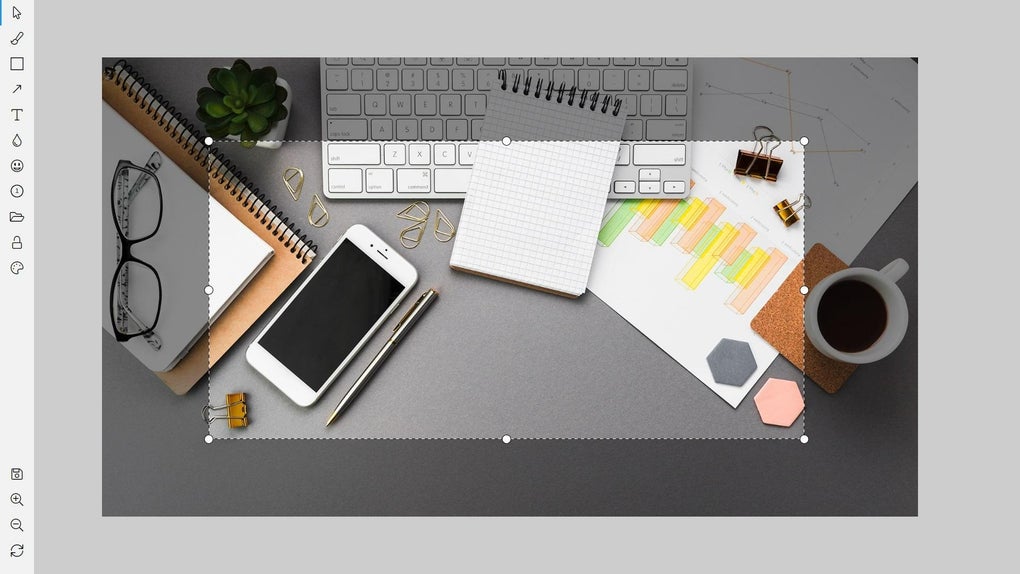
Screentake stands out in the crowded screen capture market thanks to its clean design and robust feature set. One of its most praised features is the ability to capture full-screen, specific windows, or custom regions with precision. This flexibility ensures that users can tailor their screenshots to their exact needs—whether it’s a quick capture of a chat window or a detailed view of a complex dashboard. The tool supports instant image editing, allowing users to annotate, blur, or highlight key areas directly within the app. This built-in editing functionality saves time and eliminates the need to switch to third-party tools.
Another standout feature is the seamless integration with cloud storage and sharing platforms. After capturing a screenshot, users can instantly upload and share it via a generated link—perfect for remote collaboration, customer support, or social media. Screentake also includes a built-in clipboard manager that stores your last five captures, so you can quickly paste them into emails, documents, or messaging apps. The app runs quietly in the background, consuming minimal system resources, making it ideal for multitasking without performance lag.
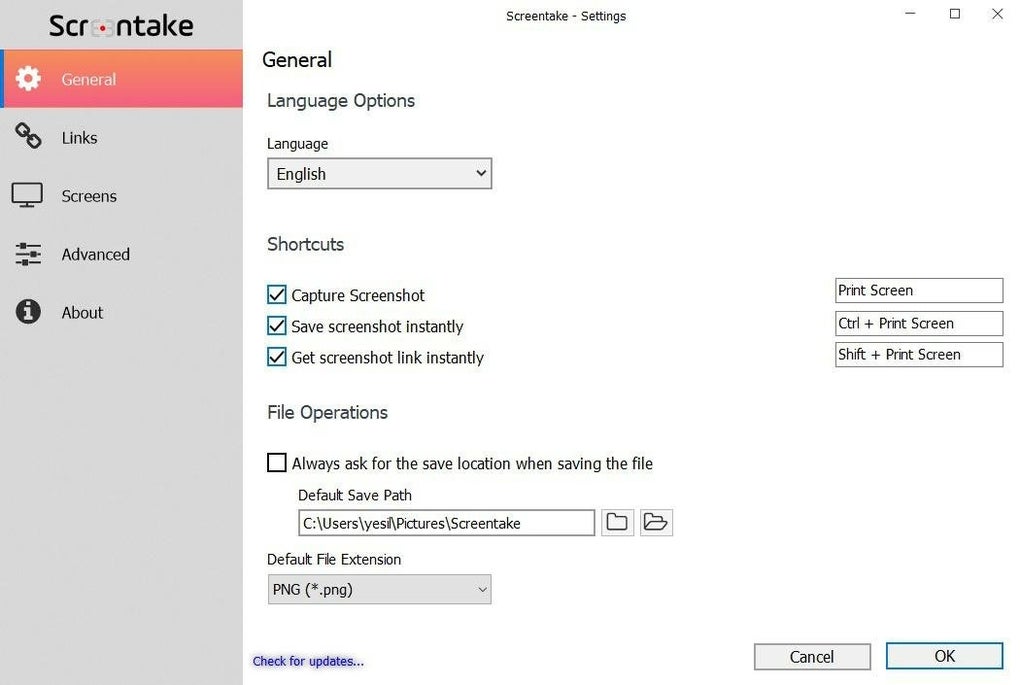
For those who prefer keyboard shortcuts, Screentake offers customizable hotkeys for different capture types—perfect for power users. You can assign shortcuts for full-screen capture, window capture, or region selection, streamlining your workflow. Additionally, the tool supports multiple file formats, including PNG, JPG, and WEBP, ensuring compatibility with most platforms. With automatic updates and regular security patches, Screentake ensures your screen capture experience remains safe and up-to-date. Whether you're a student, professional, or casual user, Screentake adapts to your needs with ease.
How to Install and Use Screentake on Your Devices
Installing Screentake is a breeze, regardless of your operating system. For Windows users, simply visit the official website at scrtake.com, download the installer, and run it. The setup wizard guides you through the process with minimal steps—no complex configurations required. Once installed, Screentake runs in the system tray, ready to use at any time. To capture a screenshot, click the app icon, choose your preferred capture mode (full screen, window, or region), and click “Capture.” The image appears instantly in the editor, where you can annotate or crop before saving.
For Mac users, Screentake offers a native .dmg installer compatible with macOS Ventura and later. After downloading, drag the app into your Applications folder. The first launch may prompt a security warning—this is normal. Click “Open” to proceed, and you’re good to go. The interface is consistent across platforms, ensuring a familiar experience no matter your device.
Android and iOS users can download the Screentake app from the Google Play Store and Apple App Store, respectively. The mobile version supports touch-based capture, allowing you to pinch, zoom, and tap to select regions. You can also use the app’s built-in camera mode to capture screen content during video calls or app demos. All captures sync across devices via your account, so you can access them from any device. For advanced users, Screentake supports batch processing and scheduled captures, ideal for monitoring dashboards or tracking app performance over time.
Compatibility & System Requirements
Screentake is designed for broad compatibility, supporting the latest versions of major operating systems. On desktops, it runs smoothly on Windows 10 and 11, as well as macOS 10.15 Catalina and later. The app is optimized for both Intel and Apple Silicon Macs, ensuring fast performance across all hardware configurations. For mobile users, Screentake is compatible with Android 8.0 (Oreo) and above, and iOS 13 and newer, making it accessible to a wide range of smartphones and tablets.
System requirements are modest, ensuring the app works even on older machines. It requires at least 500 MB of free disk space, 1 GB of RAM, and a stable internet connection for cloud sync and updates. The app does not require administrator privileges to install, making it ideal for shared or restricted environments like schools and offices. Security is a top priority—Screentake uses end-to-end encryption for all cloud uploads and does not collect personal data without explicit consent.
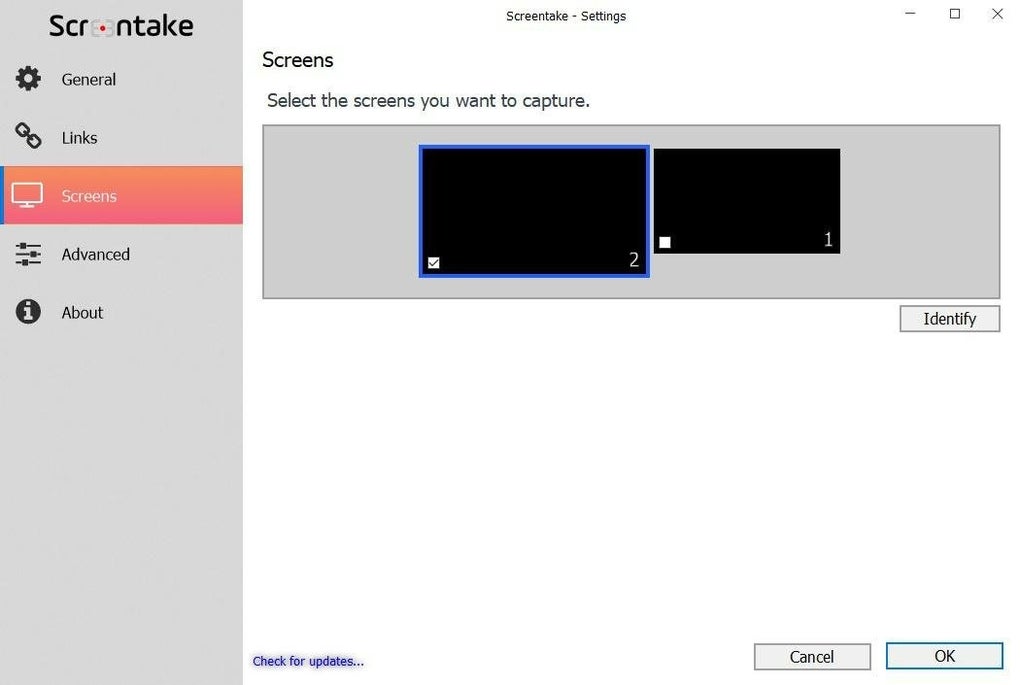
Additionally, Screentake supports multi-monitor setups, allowing users to capture specific displays or all screens simultaneously. This is especially useful for professionals managing multiple workspaces or gamers streaming gameplay. The app also integrates with popular tools like Slack, Microsoft Teams, and Google Drive, enabling one-click sharing. Whether you're working on a laptop, desktop, or mobile device, Screentake adapts seamlessly to your workflow.
Screentake Pros and Cons: A Balanced Review
Pros
- Free to use with no hidden fees or watermarks.
- Lightweight and fast—minimal impact on system performance.
- Multiple capture modes (full screen, window, region).
- Integrated editing tools for annotations and cropping.
- Cloud sync and instant sharing via shareable links.
- Customizable hotkeys for quick access.
- Supports multiple platforms (Windows, Mac, Android, iOS).
- Secure with end-to-end encryption for cloud uploads.
Cons
- No built-in video recording—only screenshots.
- Advanced editing features are limited compared to tools like Snagit.
- Cloud storage is limited in the free tier (500 MB).
- Mobile app lacks advanced filters (e.g., no blur effects).
- Occasional update delays on older OS versions.
Frequently Asked Questions (FAQ)
Is Screentake completely free?
Yes, Screentake offers a fully free version with no ads, watermarks, or time limits. You can capture, edit, and share screenshots without paying. Premium features like unlimited cloud storage and advanced editing are available via a paid subscription, but the core functionality remains free.
Can I use Screentake on both Windows and Mac?
Absolutely. Screentake is available for both Windows 10/11 and macOS 10.15 and later. The interface and features are consistent across both platforms, ensuring a seamless experience whether you're using a PC or Mac.
Does Screentake support mobile devices?
Yes, Screentake has dedicated apps for Android and iOS. You can download it from the Google Play Store or Apple App Store. The mobile version supports touch-based capture, annotations, and cloud sync across devices.
Can I edit my screenshots after capture?
Yes, Screentake includes a built-in editor with tools for drawing, adding text, blurring sensitive areas, and cropping. All edits are non-destructive, meaning you can undo changes or save multiple versions.
Is my data secure when using Screentake?
Yes, Screentake uses end-to-end encryption for all cloud uploads and does not store personal data without consent. Your screenshots are private unless you choose to share them via a link.
Final Verdict: Why You Should Download Screentake Today
If you're searching for a reliable, free, and secure screen capture tool that works across all your devices, Screentake is an excellent choice. It combines ease of use with powerful features, making it ideal for students, remote workers, content creators, and IT professionals. While it doesn’t record video, its screenshot capabilities are top-notch, and the integration with cloud platforms enhances collaboration. With regular updates, strong security, and cross-platform support, Screentake delivers a polished experience that rivals paid tools.
Whether you're troubleshooting an error, creating a tutorial, or sharing a quick update, Screentake simplifies the process. Its lightweight design ensures it won’t slow down your system, and the intuitive interface makes it easy for beginners and pros alike. Download Screentake now and take control of your screen capture workflow—effortlessly, securely, and completely free.
Download Screentake today and experience the future of screen capturing.







